

Your icon setup guide
Keep this handy for setting up your icons or switching to a new theme. Your app choices and downloads live on your theme’s setup page.
Save it in your browser
On iPhone in Safari, open the page menu, choose “Add Bookmark to,” choose a folder, then tap Save.
Using Safari’s top or bottom tab layout? Touch and hold the bookmarks button, then choose Add Bookmark. On older versions, look for Add Bookmark in the Share menu.
On a computer, press ⌘ D on Mac or Ctrl D on Windows.
Apple’s bookmark instructions ↗1Choose your apps
On your theme’s setup page, select only apps you have installed and want on your Home Screen.
2Download your shortcuts
Open your setup page in Safari on the iPhone you want the icons on. One download holds every theme you bought.
- Tap Download, then Download again when Safari asks.
- Open the Files app and go to Downloads.
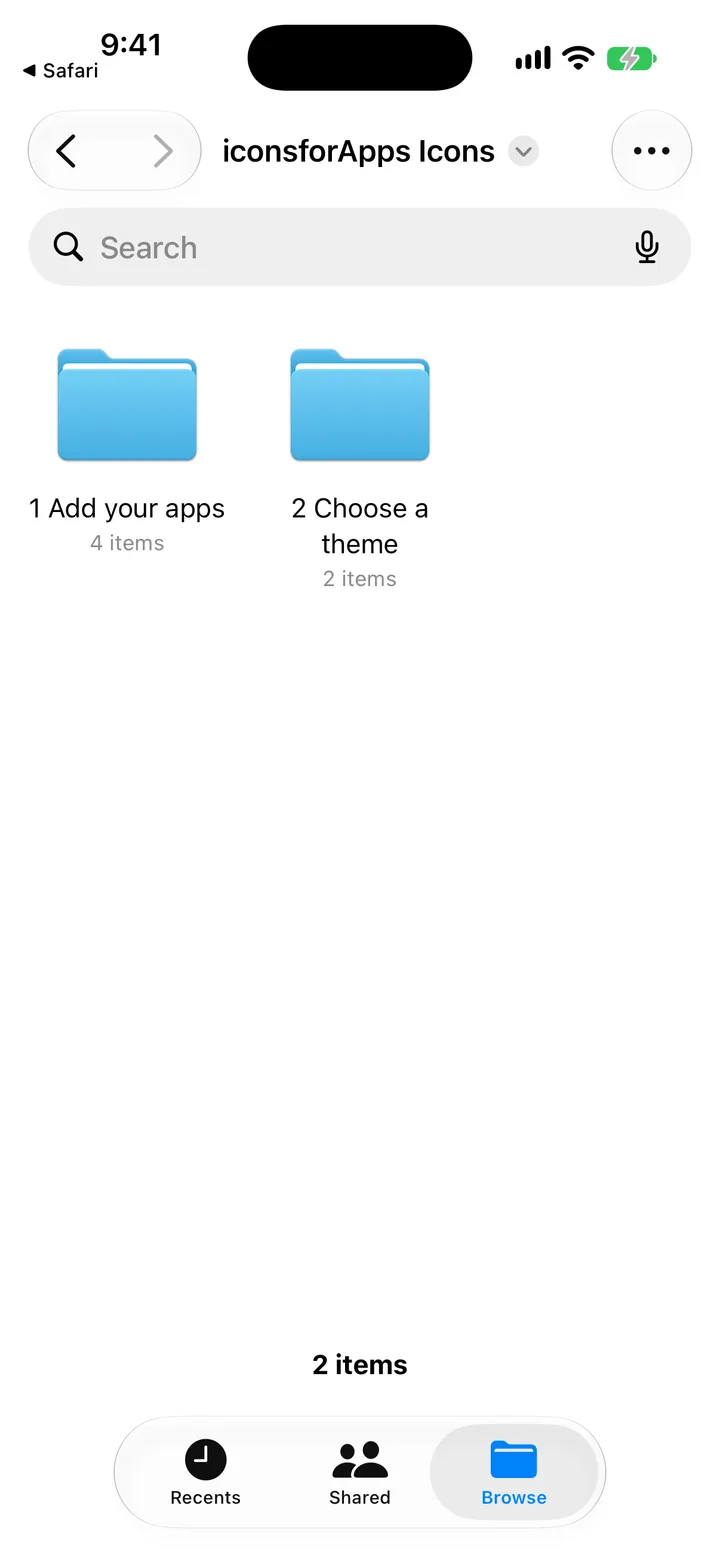
- Tap iconsforApps Icons.zip. Files opens it into an iconsforApps Icons folder.
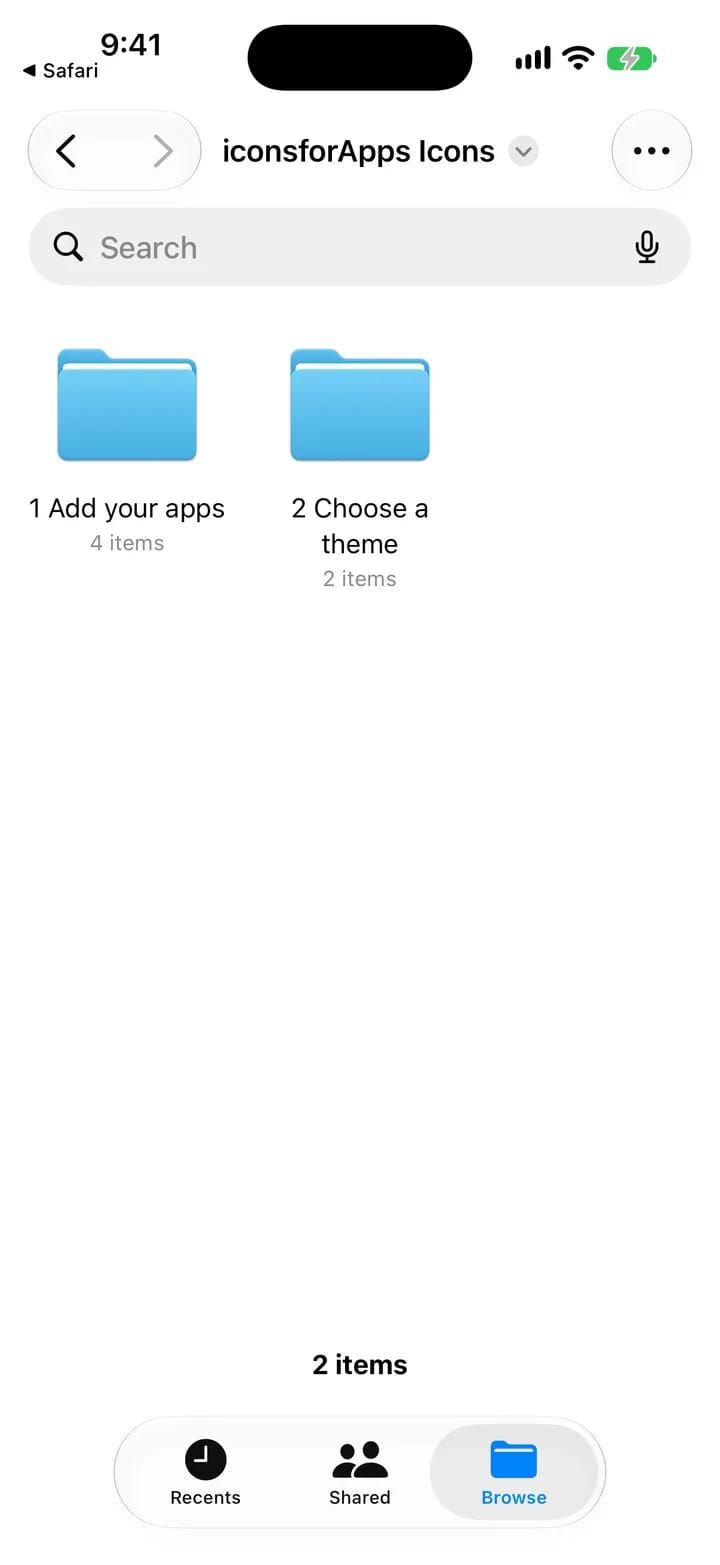
The download, opened in FilesiPhone example · Tap to enlarge 3Add your app shortcuts
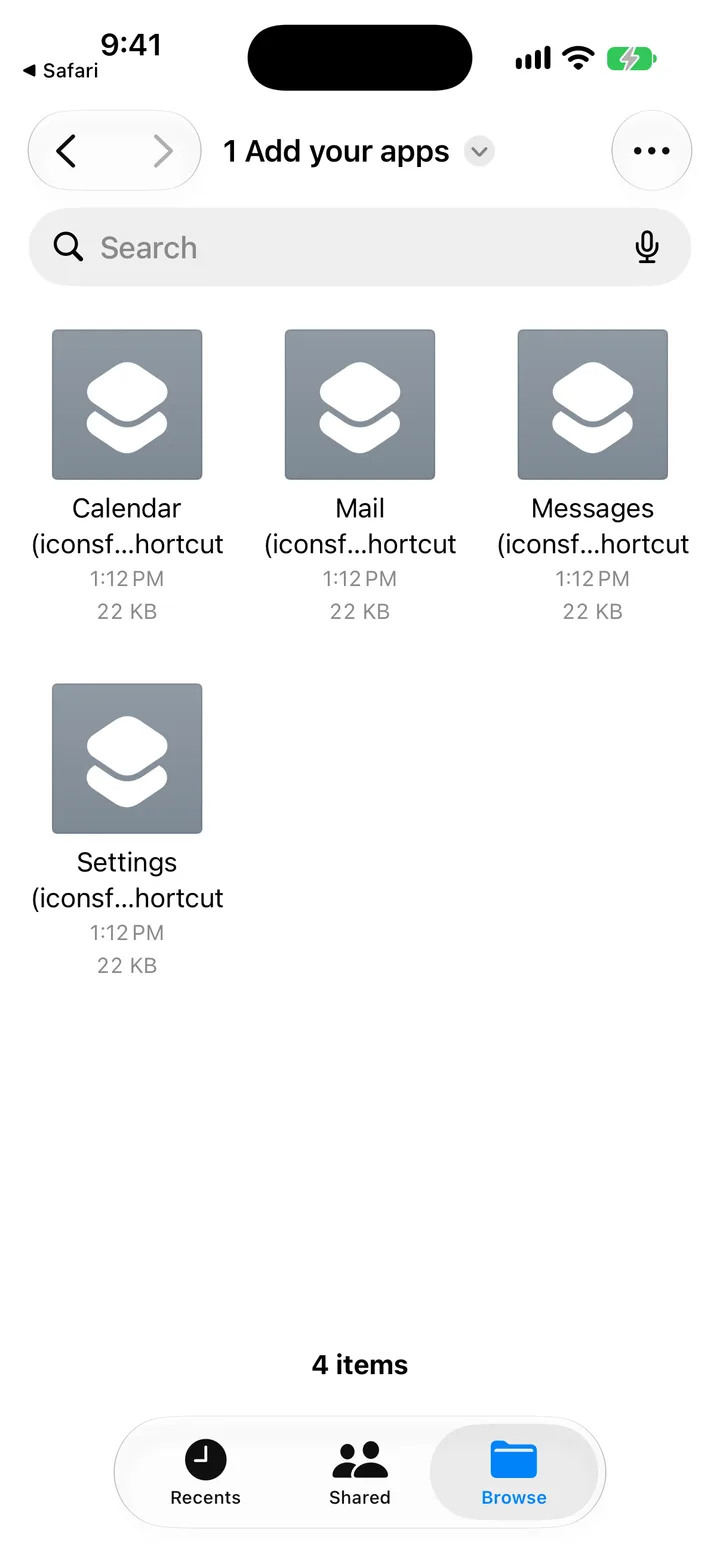
- In the iconsforApps Icons folder, open 1 Add your apps.
- Tap a shortcut.
- Tap Add Shortcut.
- Tap ‹ Files in the top-left corner.
- Repeat for every shortcut in the folder.
Each shortcut opens its app, and every theme uses the same ones. You only approve them.
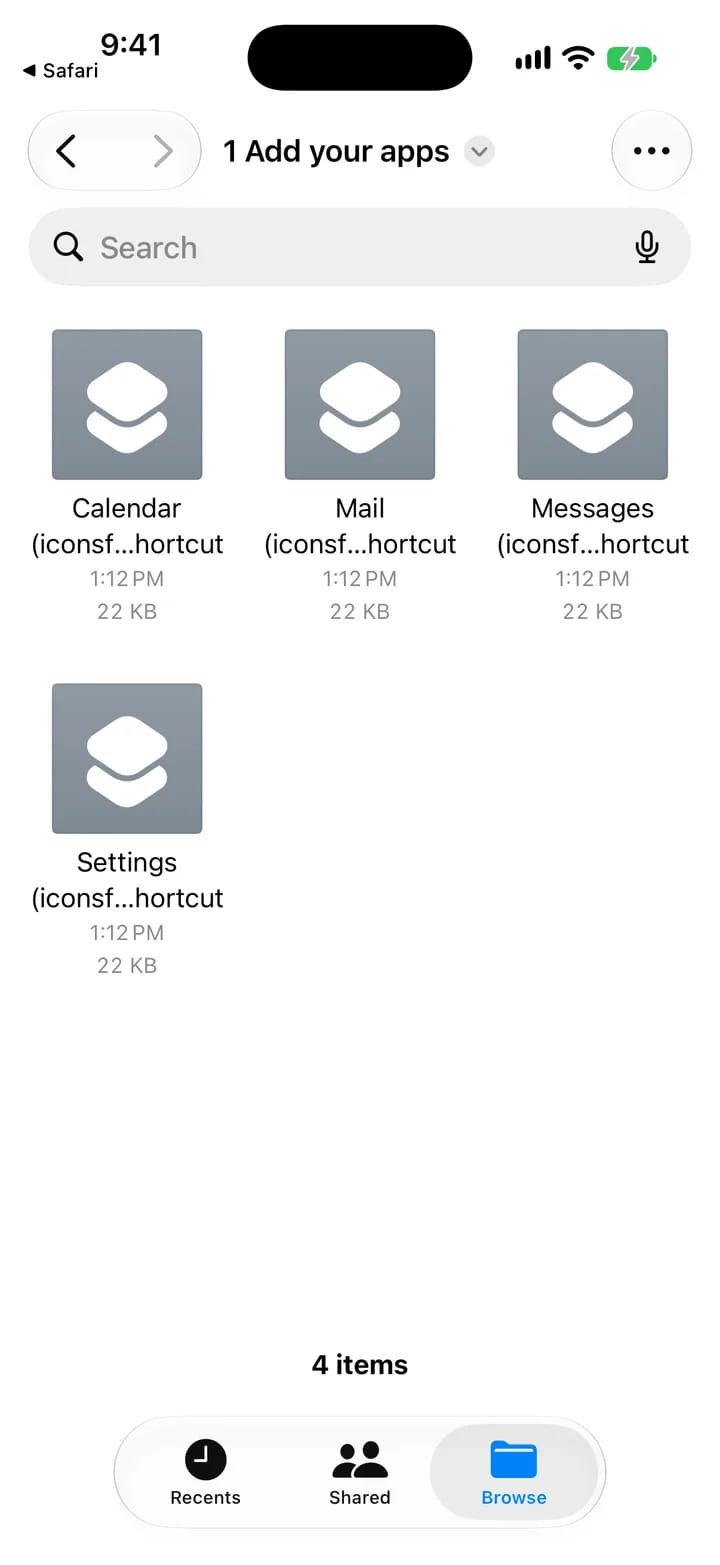
One shortcut for each appiPhone example · Tap to enlarge 4Install your icons
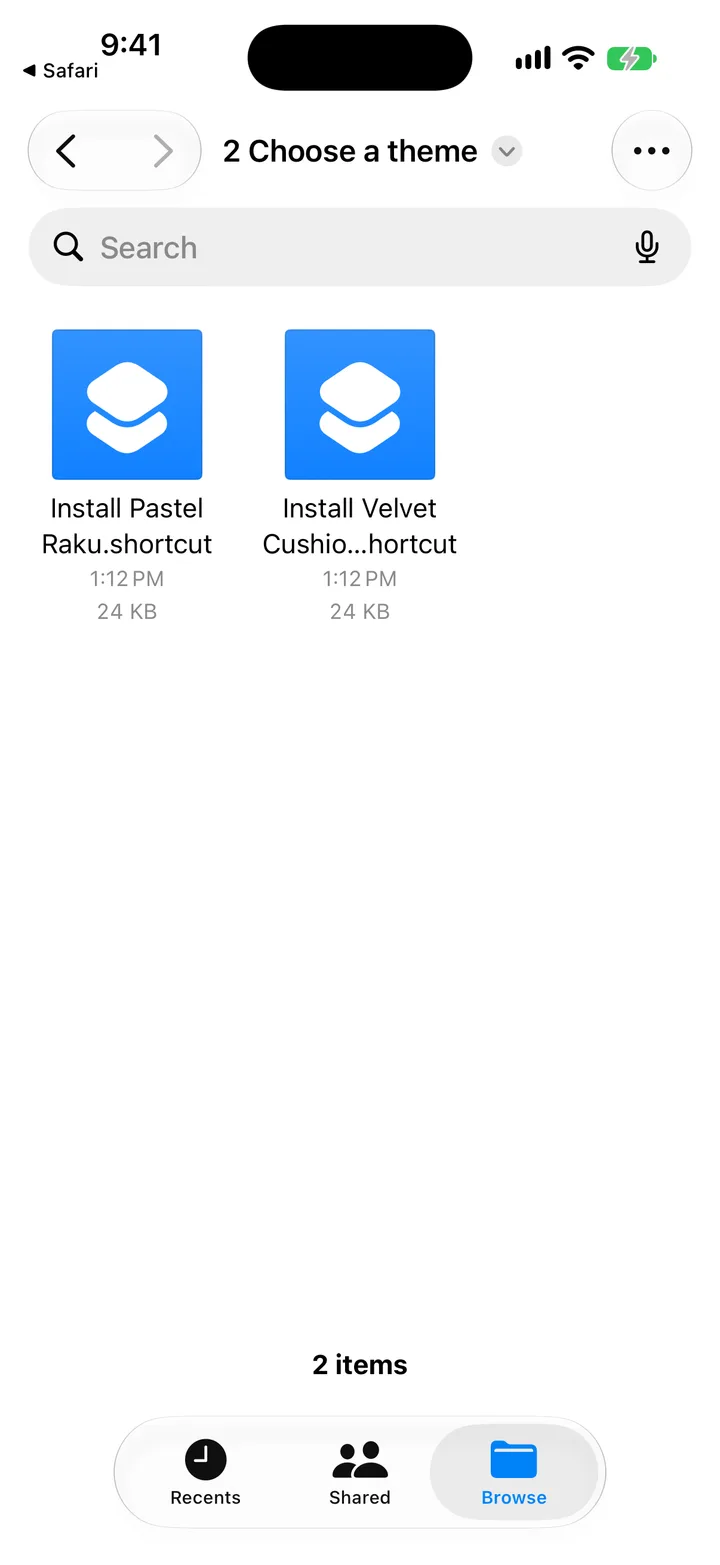
Bought several themes? The second folder is called 2 Choose a theme. Add every Install shortcut in it, then run the one you want first.
- Go back and open 2 Install your icons.
- Tap your theme’s Install shortcut, then tap Add Shortcut.
- In Shortcuts, press ▶ on it.
- When your iPhone asks to let it connect to iconsforApps, tap Allow. It asks once for each app.
Your new icons appear on your Home Screen.
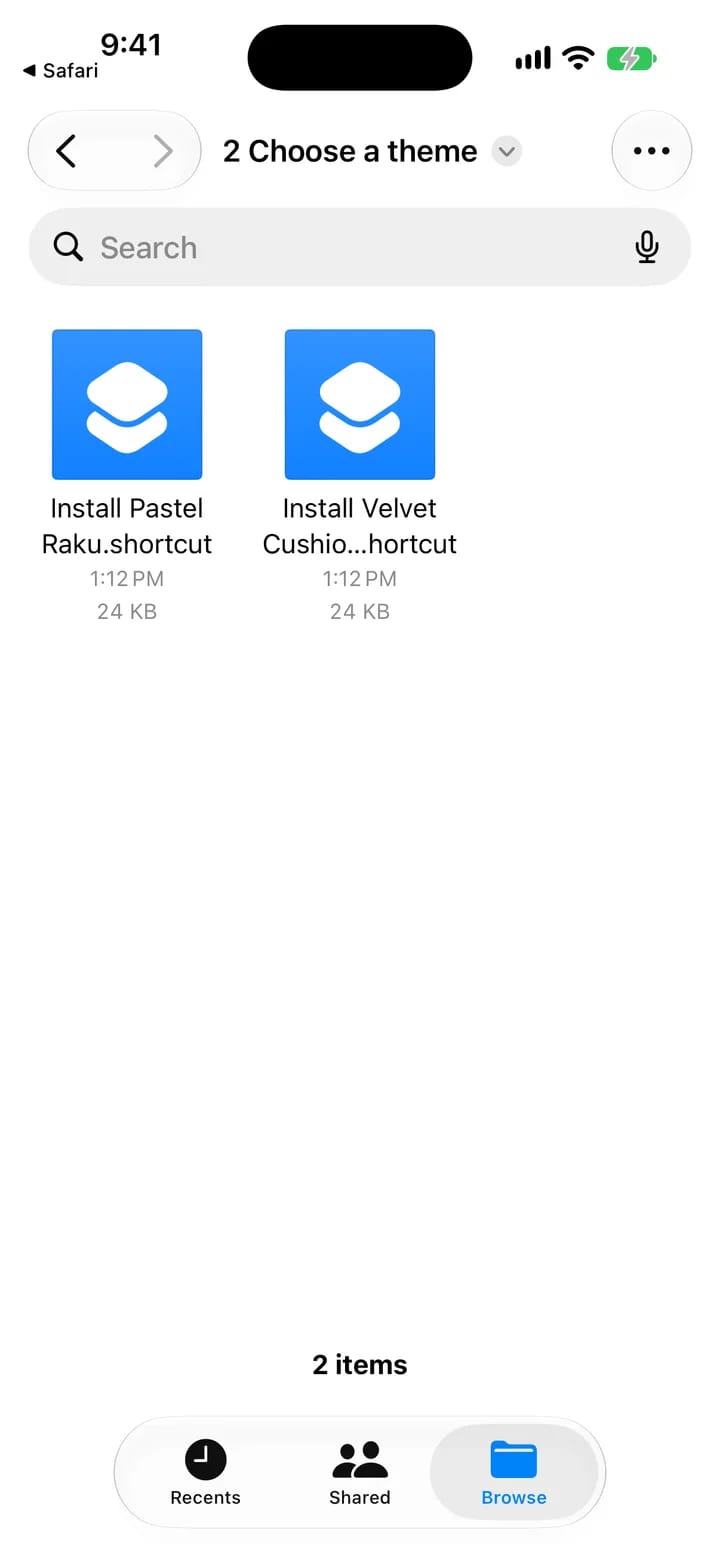
One Install shortcut for each themeiPhone example · Tap to enlarge 5Remove from Home Screen
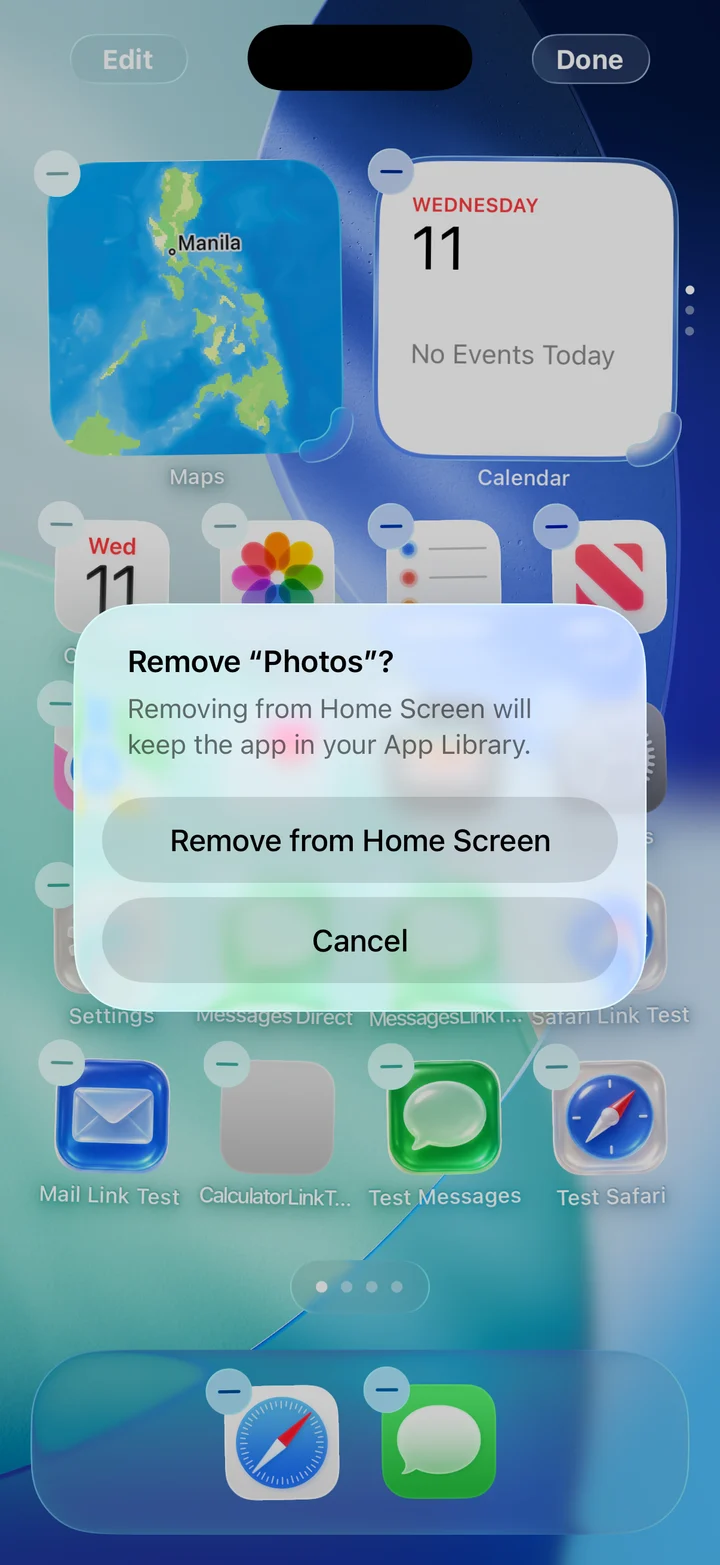
- Touch and hold an original app.
- Tap Remove App.
- Tap Remove from Home Screen.
- Repeat for the originals you want to hide.
Each app stays installed in App Library.
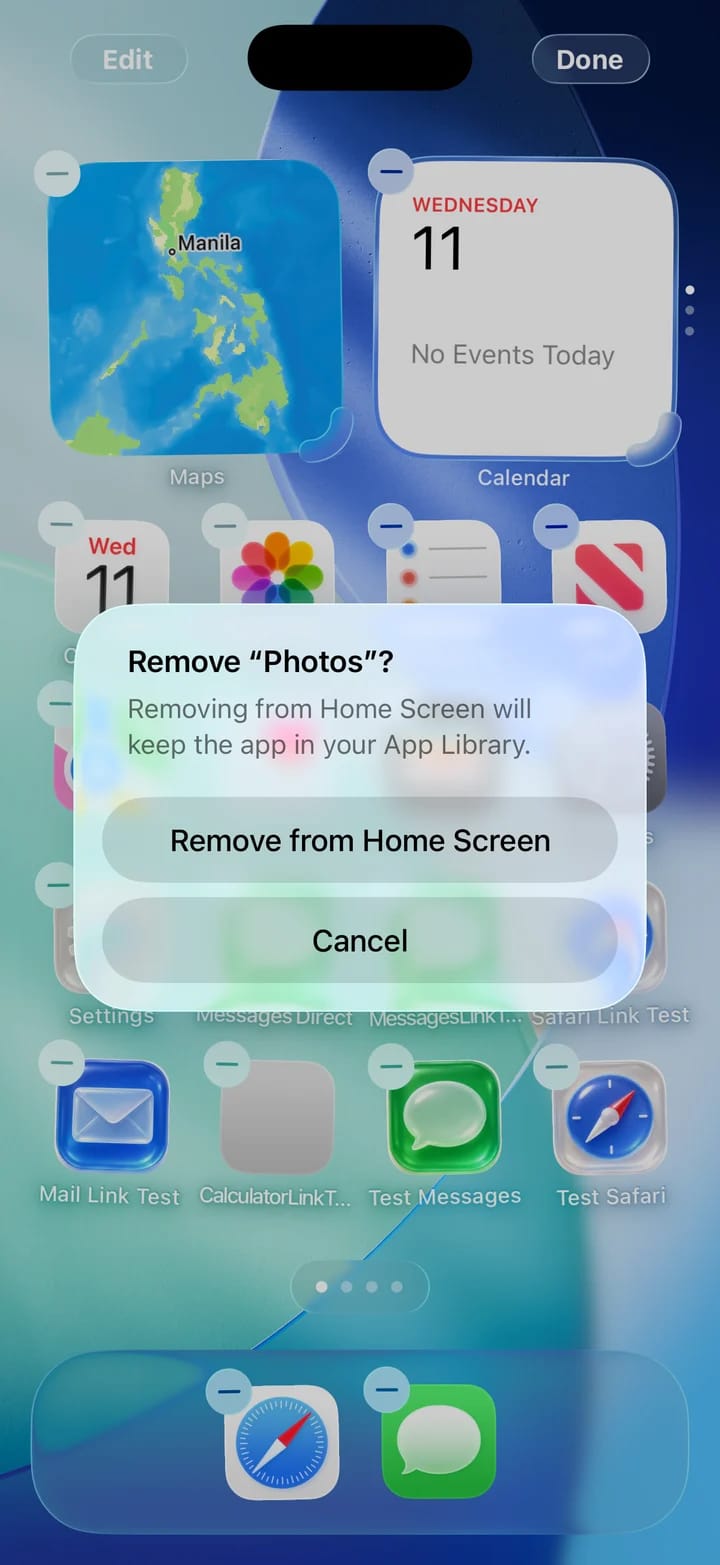
Keep the original app in App LibraryiPhone example · Tap to enlarge
How to switch themes
Put on the new theme
Put the new theme on first, so your Home Screen is never without icons.
Bought it later? Download it from its setup page first, and add its Install shortcut and any apps that are new.
- In Shortcuts, press ▶ on the new theme’s Install shortcut.
- Tap Allow when asked, once for each app.
The new icons appear on your Home Screen next to your current ones.
Remove the old icons
- Touch and hold an old themed icon.
- Delete it from your Home Screen.
- Repeat for the old theme’s other icons.
Only the old themed icons go. Your apps stay installed and untouched.
Good to know
- Setup adds only shortcuts: no settings, profiles or extra apps.
- A theme’s Install shortcut downloads only that theme’s pictures from iconsforApps. Your iPhone asks you to allow this once for each app.
- Changing themes doesn’t automatically put the new icons in the old icons’ positions.
- Notifications still arrive, but red badges appear on the original apps, not the themed icons.
Save it in your browser
On iPhone in Safari, open the page menu, choose “Add Bookmark to,” choose a folder, then tap Save.
Using Safari’s top or bottom tab layout? Touch and hold the bookmarks button, then choose Add Bookmark. On older versions, look for Add Bookmark in the Share menu.
On a computer, press ⌘ D on Mac or Ctrl D on Windows.
Apple’s bookmark instructions ↗